

E-learning and online lesson softwareLessons in the same topic tree as the question bank: learn, practise, measure.
If your plan includes e-Learning, Sypnex also handles topic teaching: lessons made of video, written explanation, PDF, link and live class (Zoom, Teams) parts; assignment to classes or students, sequential locks, a tracking table, a parent summary and a Lessons tab in the mobile app. Once the lessons are done, students move on to practice with the same topic’s questions.
01LEARNING CYCLE
Learn, practise, measure, revisit what was missed.
The four steps meet in one topic tree. A topic’s lessons, questions, practice and exam results are linked; that link is what a separate video site and a separate exam system cannot build.
Learn (Lessons)
Students study the topic with video, written explanations, PDFs and live classes; a lesson is complete once its required parts are done.
Practise (Practice)
Practise this topic on the lesson page leads to that topic’s practice questions; the correct answer and solution appear at once for every question.
Measure (Exams)
Online or paper exams with an approved test; results, reports, the gradebook and certificates.
Revisit (Lessons)
A topic left weak is studied again by going back to the lessons in the same topic tree; the teacher can reassign that topic’s lessons if needed.
02LESSONS AND PARTS
One lesson, several parts: video, written explanation, PDF, link, live class.
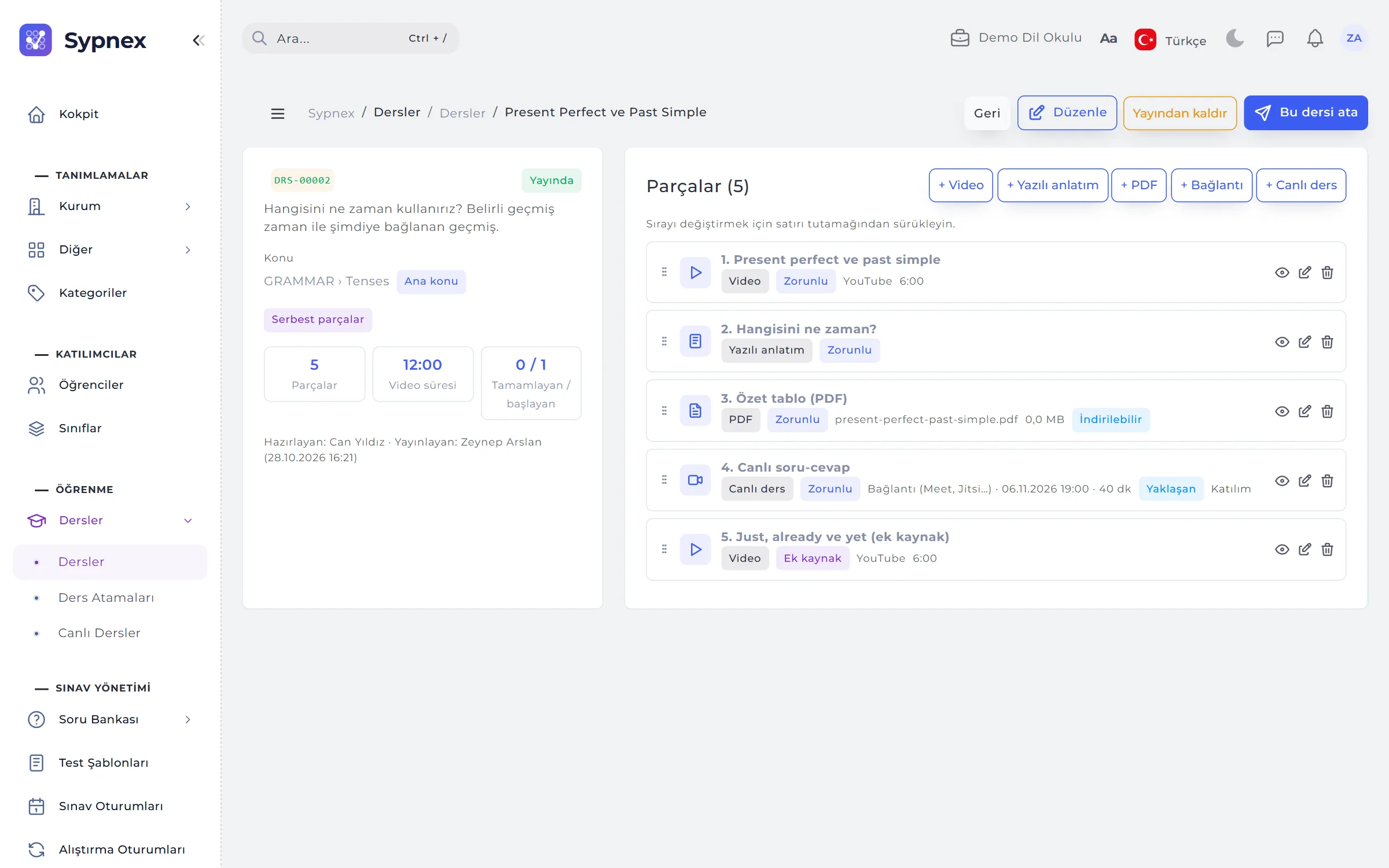
In Learning → Lessons each lesson is linked to a topic in the e-Learning area and can also be listed under up to 10 extra topics. Parts are added with the buttons on the lesson page and reordered by dragging their handle; Preview shows the content as the student will see it.
- Required or extra resource: an extra resource is always open and doesn’t count towards locks or completion.
- Completion: video when 90% is watched, written explanations and PDFs with I’ve read it, links when opened, live classes with Join or by watching the recording.
- Parts in order: when on, a required part doesn’t open until the ones before it are finished.
- List: code, topic, number of parts, video length, students completed / started, Published or Draft.

03VIDEO
Videos aren’t uploaded to Sypnex; they come from YouTube, Vimeo or Bunny Stream.
Paste a YouTube or Vimeo link and Fetch details takes the title, length and thumbnail from it. If the institution’s Bunny Stream library is connected, videos are listed in the Pick from Bunny window. The player opens inside Sypnex, and watched time is saved every few seconds.
- Time actually watched: skipping to the end or fast-forwarding doesn’t add time; the video is complete once 90% is watched.
- Pick up where you left off: a video left half-way on the phone continues on the computer.
- No skipping ahead: on Vimeo and Bunny, students can’t jump to a part they haven’t watched.
- Signed address: the Bunny player address is signed and time-limited; a shared link stops working after a while.
04ASSIGNMENTS AND LOCKS
A published lesson is visible to students only through an assignment.
In Lesson Assignments → Open Lessons you choose topics or individual lessons, and all students, classes or individual students. Choosing a topic opens all published lessons in it and below it, including ones added later. Start and end dates are optional.
- Lessons in order within a topic: a lesson doesn’t open until the earlier lessons in the same topic are finished.
- No practice until lessons are done: the topic’s practice questions open once its lessons are finished.
- Checked on the server: a locked lesson or part can’t be reached through a link either; the same on web and mobile.
- Notification: sent once to students and parents through the channels of the institution’s “Lesson assignment” template.

05LIVE CLASSES
Sypnex opens the Zoom or Teams meeting; attendance and recordings come in automatically.
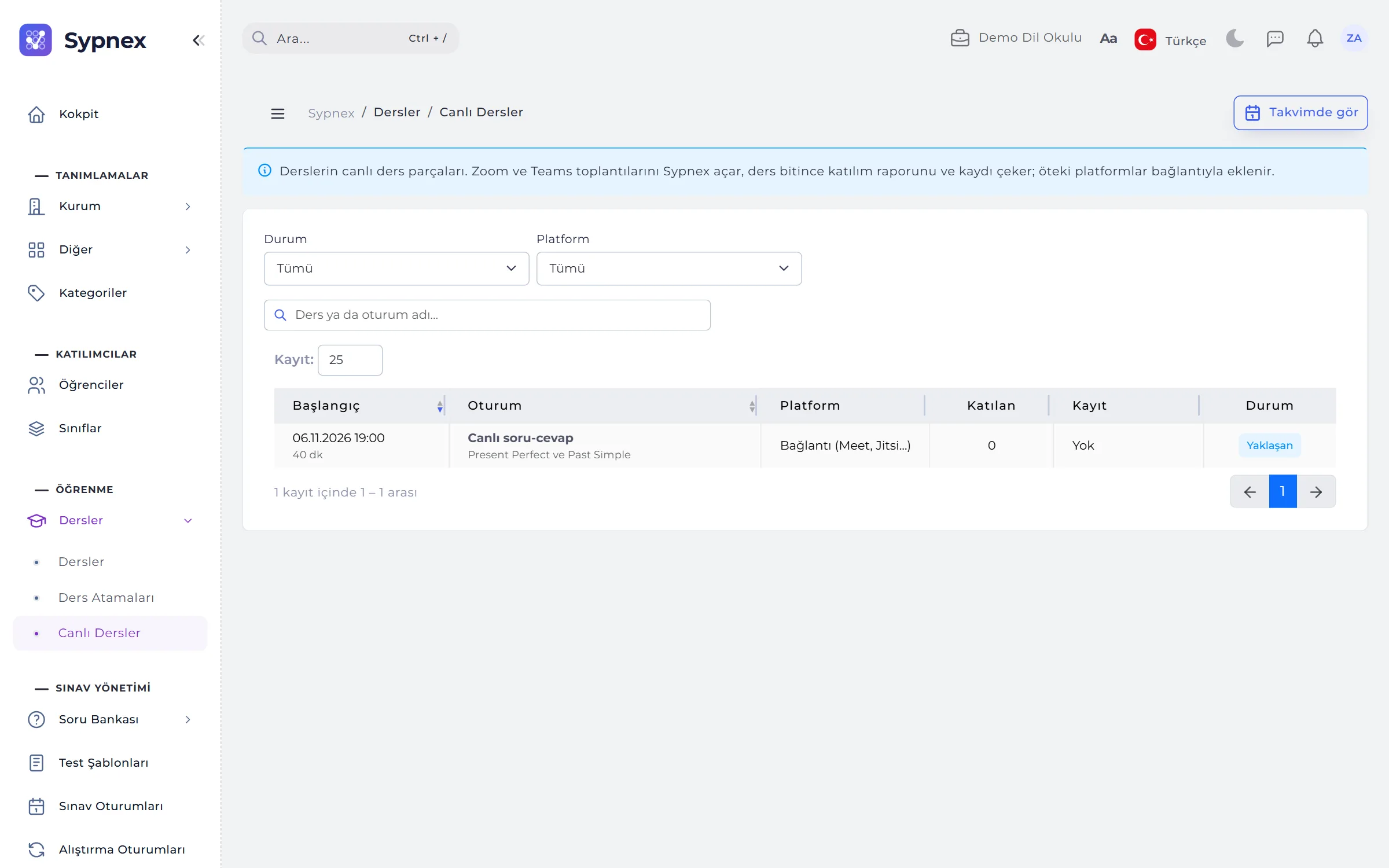
A live class is a lesson part: you enter the platform, start time and duration. If a Zoom or Microsoft Teams account is connected, Sypnex opens the meeting and updates it on the platform if the time changes; other platforms (Meet, Jitsi…) are added as a link. The Live Classes list and the calendar show every session.
- Reminders: 1 day and 15 minutes before the class, to the students it is assigned to.
- Join: opens 30 minutes before the class, when the meeting password also appears; Add to calendar (.ics).
- Attendance report: with Zoom and Teams the platform’s report is pulled in when the class ends; unmatched participants are listed separately.
- Recording: the Zoom cloud recording comes in automatically; a student who missed the class can complete the part by watching it.
06STUDENT: MY LESSONS
The lesson to continue, upcoming live classes and the topic tree; on web and mobile.
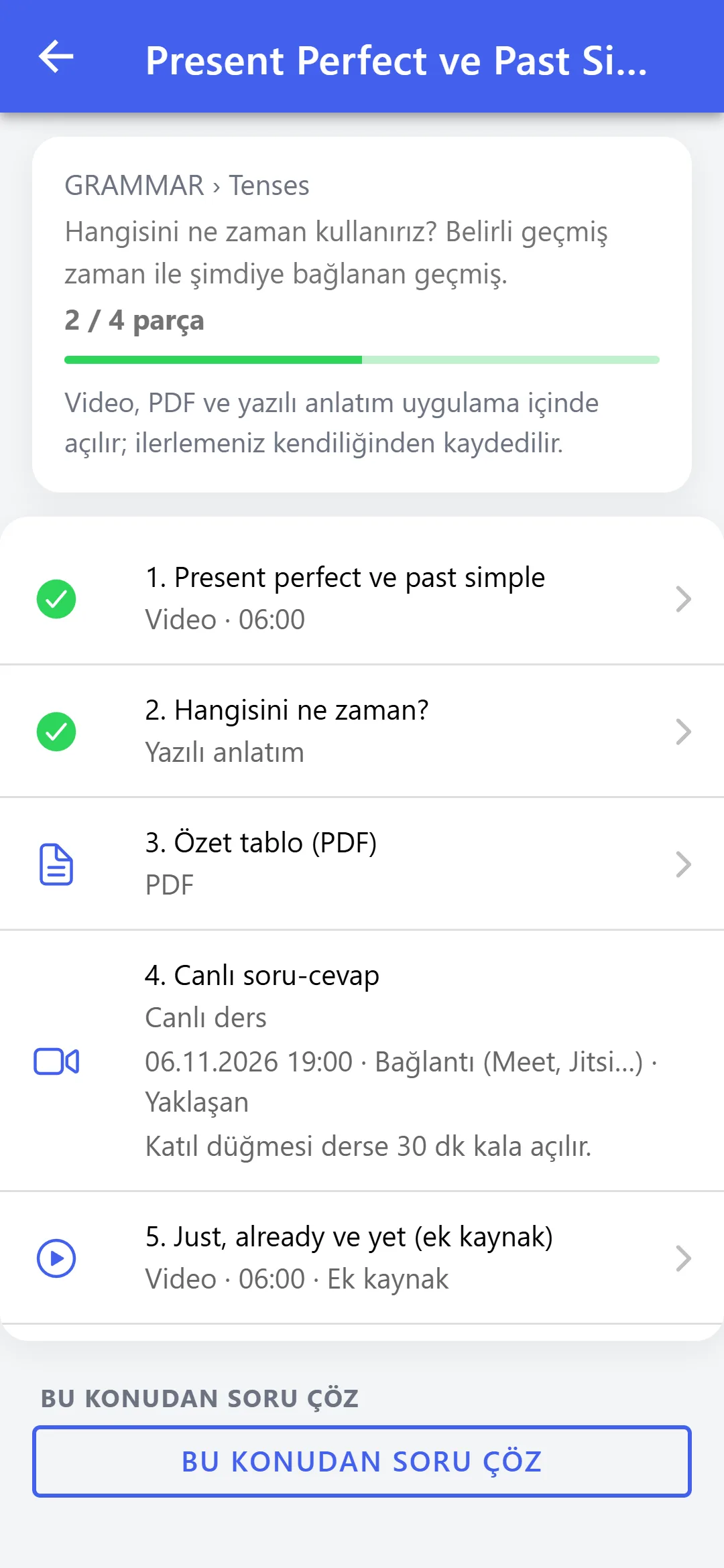
In the Lessons menu students see the lesson they were on and the next part, and continue with Continue. In the topic tree each lesson shows progress such as “2 / 5 parts”; a locked lesson shows the name of the lesson to finish first. The Lessons tab in the mobile app offers the same screens.
- Lesson page: parts, progress, required parts and extra resources; Previous / Next to move on, and a New badge on parts added later.
- Practise this topic: leads to the practice questions on the lesson’s topic.
- Mobile: video, PDFs and written explanations open inside the app; Join opens the Zoom or Teams app.
- Notifications: tapping a lesson assignment or live class reminder opens the lesson.

07TRACKING AND MANUAL UNLOCK
Who finished which lesson and who got stuck, in one table.
The tracking table under Lesson Assignments → assignment is laid out student × lesson: each cell shows finished / required parts, a ✓ for a completed lesson, and attendance for lessons with a live class. The Lessons section of the student card shows all of a student’s lessons with status and last activity.
- Unlock: for technical problems or absence, the order is lifted for one student; the reason goes into the audit trail.
- Unlock practice: the student can enter the chosen topic’s practice before the lessons are finished.
- Reversible: a manual unlock carries an Unlocked manually badge and is removed with undo.

08PARENTS
Parents see lesson progress and get a weekly summary.
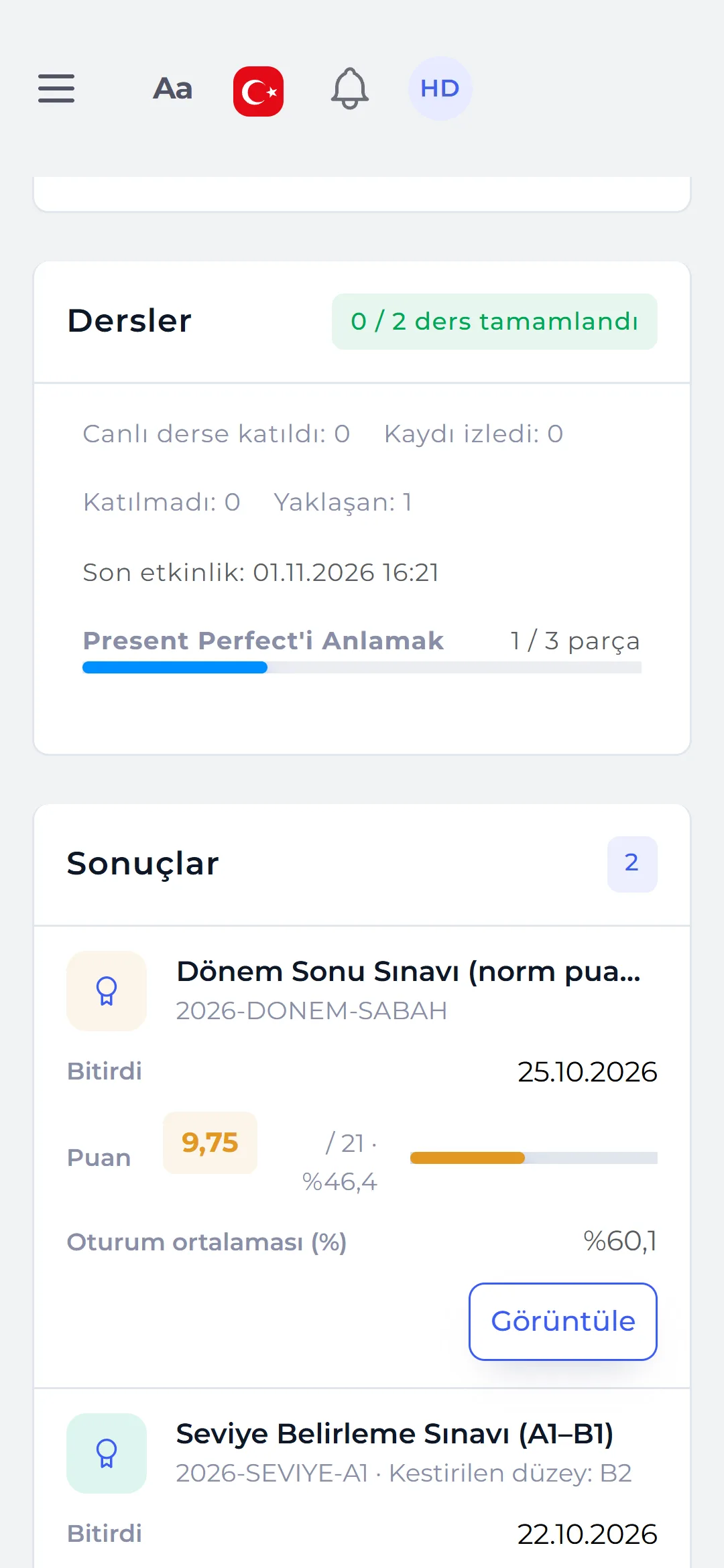
On the student page of the parent panel, the Lessons section shows lessons completed and assigned, live class attendance (attended, watched the recording, missed, upcoming), last activity and the part progress of lessons in progress.
- Weekly summary: if the institution enables it, every Monday morning a summary of the past week: lessons and parts completed, live classes attended.
- Assignment notice: if the teacher chooses to notify, parents are told when a lesson is assigned.
- Mobile: parents see the same summary on the student screen in the mobile app.
09SHARED TOPIC TREE
The question bank and lessons use the same categories.
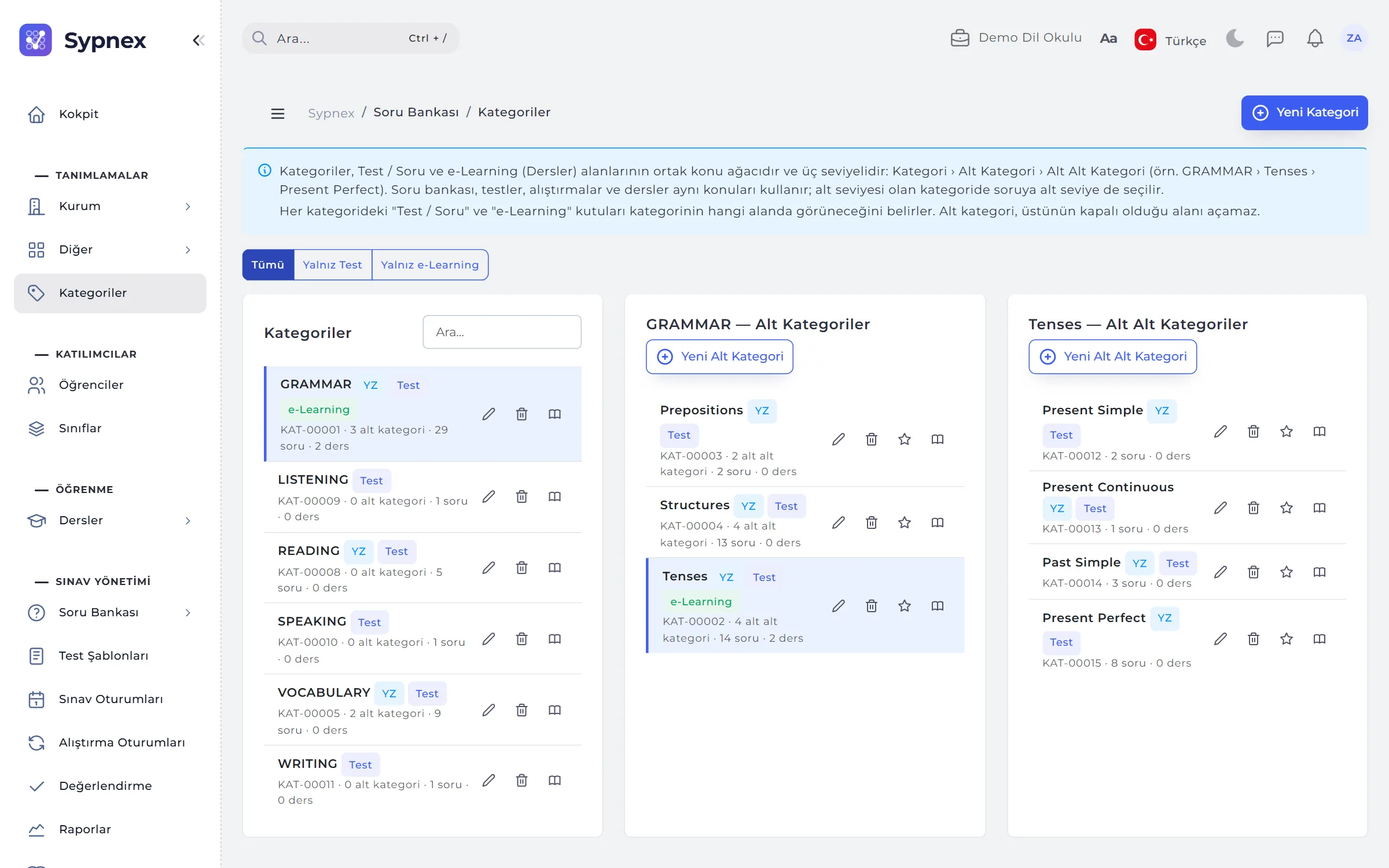
Categories are the institution’s shared topic tree. In the add / edit window you choose where a category is used: active in the Test / Question area, active in the e-Learning area, or both. Rows carry Test and e-Learning badges, and the Test only and e-Learning only filters sit at the top.
- At least one area: both boxes can’t be turned off; use the Active switch to close a category.
- Child ⊆ parent: an area closed on the parent can’t be opened on a child; Open e-Learning in this branch opens the whole branch.
- In use stays open: an area can’t be closed on a category with questions or lessons; the warning gives the count and what to do.
10ACCOUNTS, PERMISSIONS AND DATA PROTECTION
Video and live class accounts belong to your institution; keys are stored encrypted.
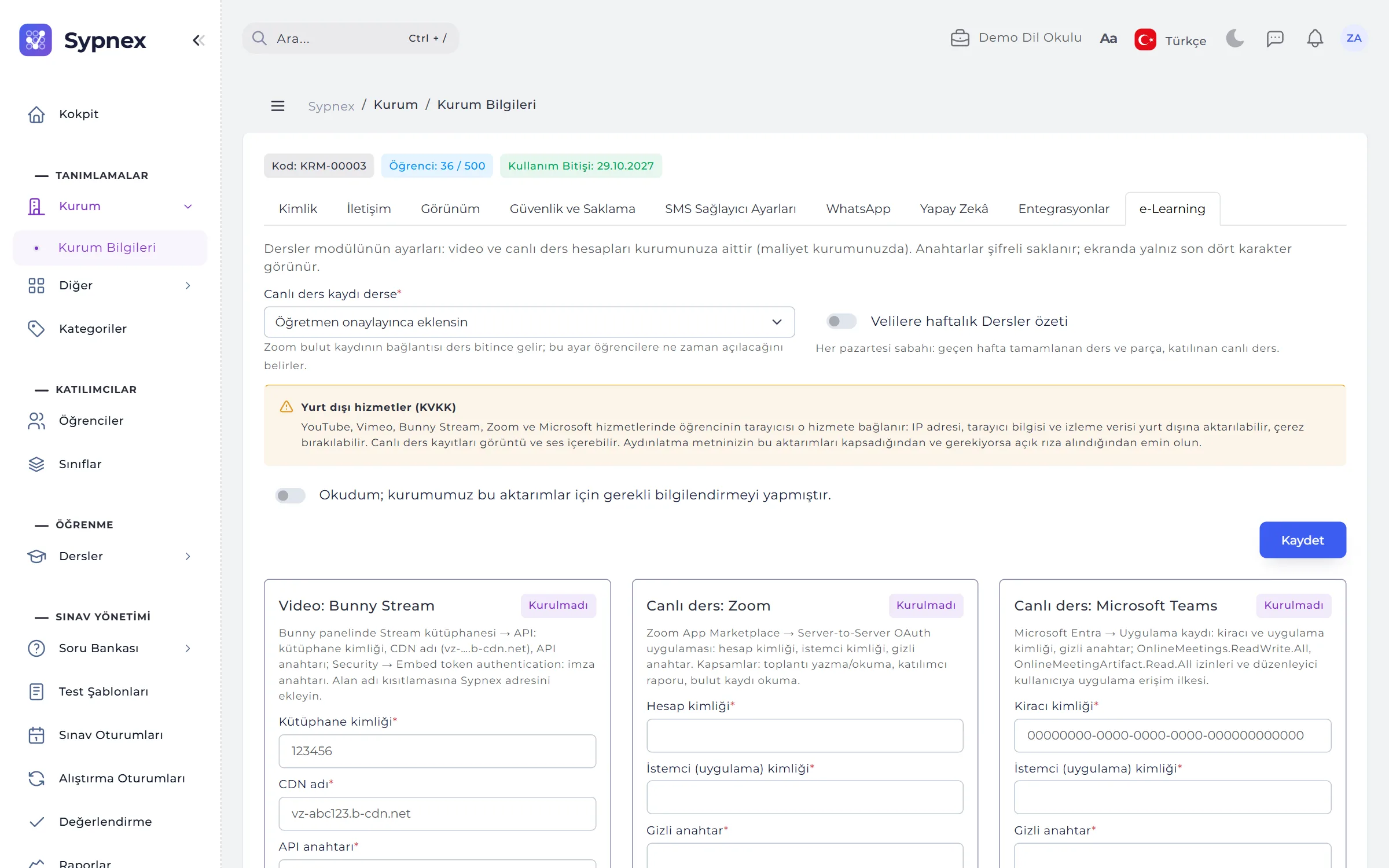
Bunny Stream, Zoom and Microsoft Teams accounts are connected on the Institution Details → e-Learning tab and tried with Test connection. YouTube and Vimeo need no account. This is also where you set when live class recordings are added to the lesson and the weekly summary for parents.
- Services abroad: before the first account is connected, a data protection notice is confirmed; who confirmed it and when are recorded.
- Content Author and Publisher: authors prepare lessons but can’t publish; publishers review and publish them.
- Keys: only the last four characters are shown on screen.
- Plan feature: for an institution without e-Learning, the Lessons menu, category boxes and mobile tab don’t appear at all.
RULES
Lesson rules
Some rules are fixed so that student progress stays reliable and teachers’ locks stay meaningful.
Assigned lessons only
Students never see a draft lesson, and a published lesson opens only through an assignment.
At least one part to publish
A lesson to be published needs at least one active part, and its topic must be active in the e-Learning area.
Progress is kept
Progress is kept when a lesson is unpublished or leaves an assignment, and resumes when it opens again. A newly added required part doesn’t undo the completion of a student who already finished.
The most open setting wins
If a lesson is in several assignments, the most open lock setting applies to the student.
Locks on the server
A locked lesson or part can’t be reached through a link either; web and mobile follow the same rule.
No video uploads
Videos come from YouTube, Vimeo or the institution’s Bunny Stream library; a PDF part is at most 20 MB.
Run your next lesson, practice and exam with Sypnex.
Leave a demo request and try Sypnex with your own lessons, questions, classes and scoring rules, and with AI if you like.