

Online exams, proctoring and optical formsOnline or on paper; every exam from the same session screen.
The day-to-day work of online exam software: access windows and participants, publishing and notifications, live monitoring, extra time and reopening, retakes and practice, exam security and camera proctoring, norm-referenced scoring and paper exams with optical forms.
01SESSION
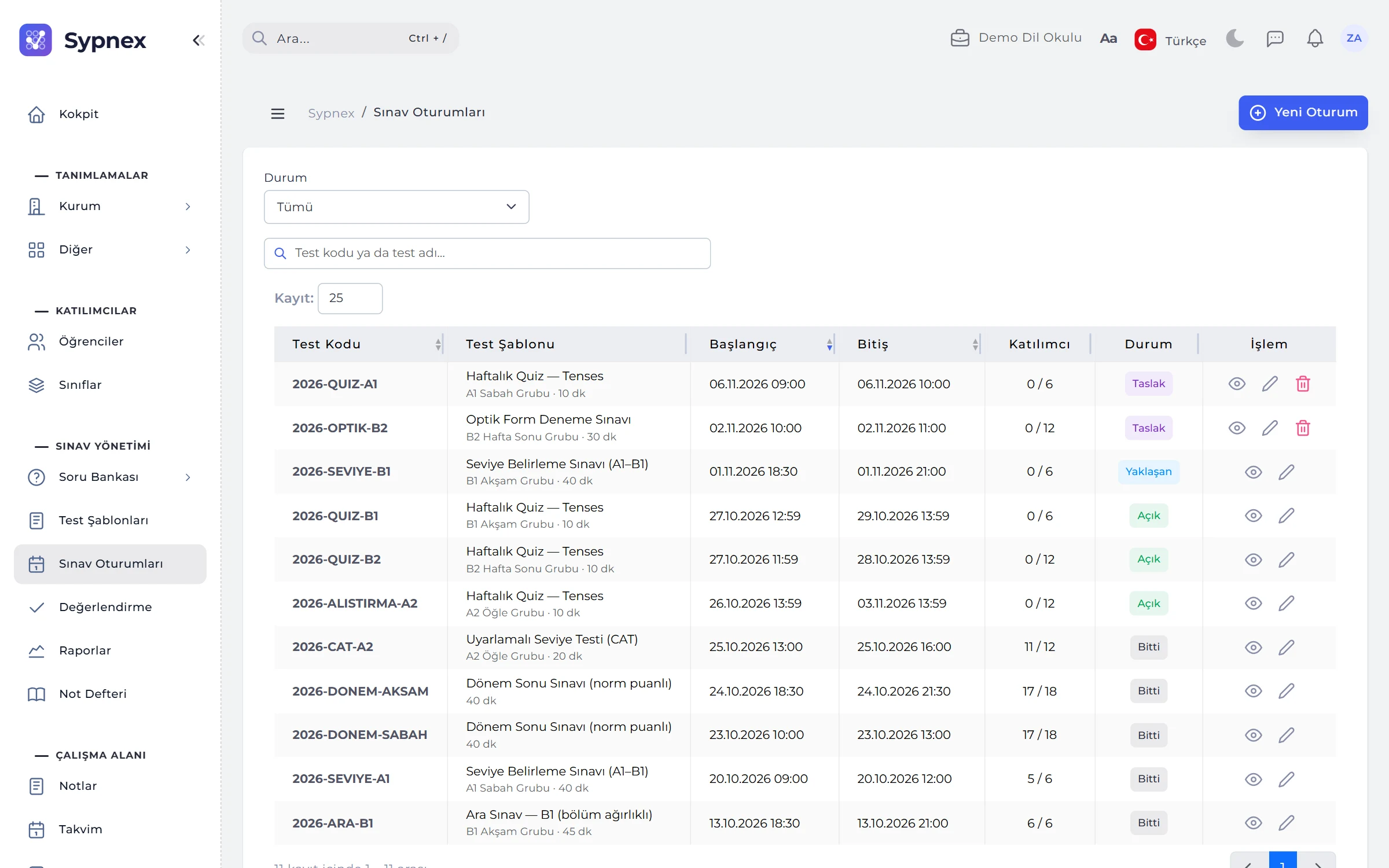
Pick the class, set the window, publish.
A session opens an approved test to specific participants for a specific period. Selecting a class adds its students as participants in one click; instructions can include the student’s name, question count and duration through placeholders.
- Access window: start and end; a student’s end time is the earlier of start + duration and the window end.
- Extra time: a 40-minute exam lasts 50 minutes for a student with 25% extra time.
- Publishing and notices: an “Exam assigned” notice and reminders 1 day and 1 hour before; panel, email, SMS and WhatsApp.
- Calendar: the session appears in the calendar automatically and can be added to your own calendar app as .ics.
02LIVE MONITORING
Who is in the exam, how many questions answered, how many minutes left?
The monitoring part of the session page refreshes every 15 seconds while the session is open: status, start and submission, remaining time, answered questions, score and security alerts, student by student.
- Extend time: 1–600 minutes of extra time for a student in the exam.
- Reopen: reopens a submitted or expired attempt, or gives an absent student a personal window.
- Release device lock: when a single-device rule applies and the student has to use another device.
- Event log: tab switches, leaving full screen, copying, blocked IPs, no face in view and proctoring photos.

03EXAM SECURITY AND PROCTORING
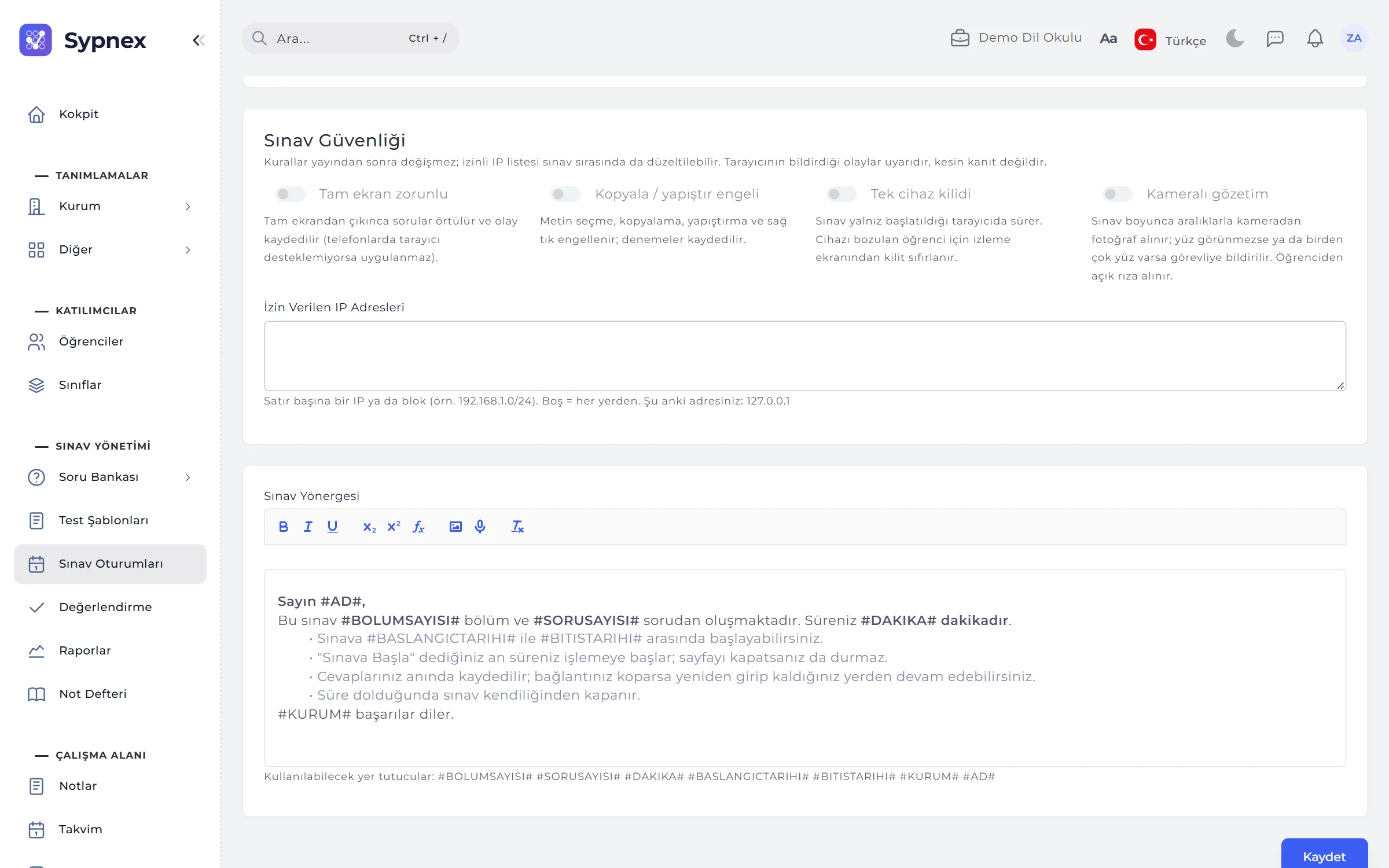
Rules are set before publishing and do not change afterwards.
The session’s rules are chosen on the Exam Security card. Leaving full screen, switching tabs and copying are logged; the teacher sees the events student by student on the live monitoring screen.
- Mandatory full screen: a student who leaves full screen is warned and the event is logged.
- Copy / paste blocking: copying and pasting are blocked and attempts are logged.
- Single device and IP: the exam is bound to the first device used; allowed IP addresses or ranges (192.168.1.0/24) can be set.
- Camera proctoring: if your plan includes it, a photo every 15–600 seconds; no-face or multiple-face events, with the student’s prior consent.
04RETAKES AND PRACTICE
Students can take the same exam more than once.
The Attempts card sets the maximum number of attempts (1–10), the policy for the valid score and the waiting time between attempts. Practice sessions are excluded from reports and norm calculations.
- Policy: the best, the last or the average attempt counts as the valid score.
- Practice mode: with Check, the student sees the correct answer and explanation right after answering; the result opens on submission.
- Connection loss: answers are also kept on the device and sent when the connection returns; time follows the server clock.
05NORM-REFERENCED SCORING
In a hard exam 42 net is worth 65 points; in an easy one, 52.
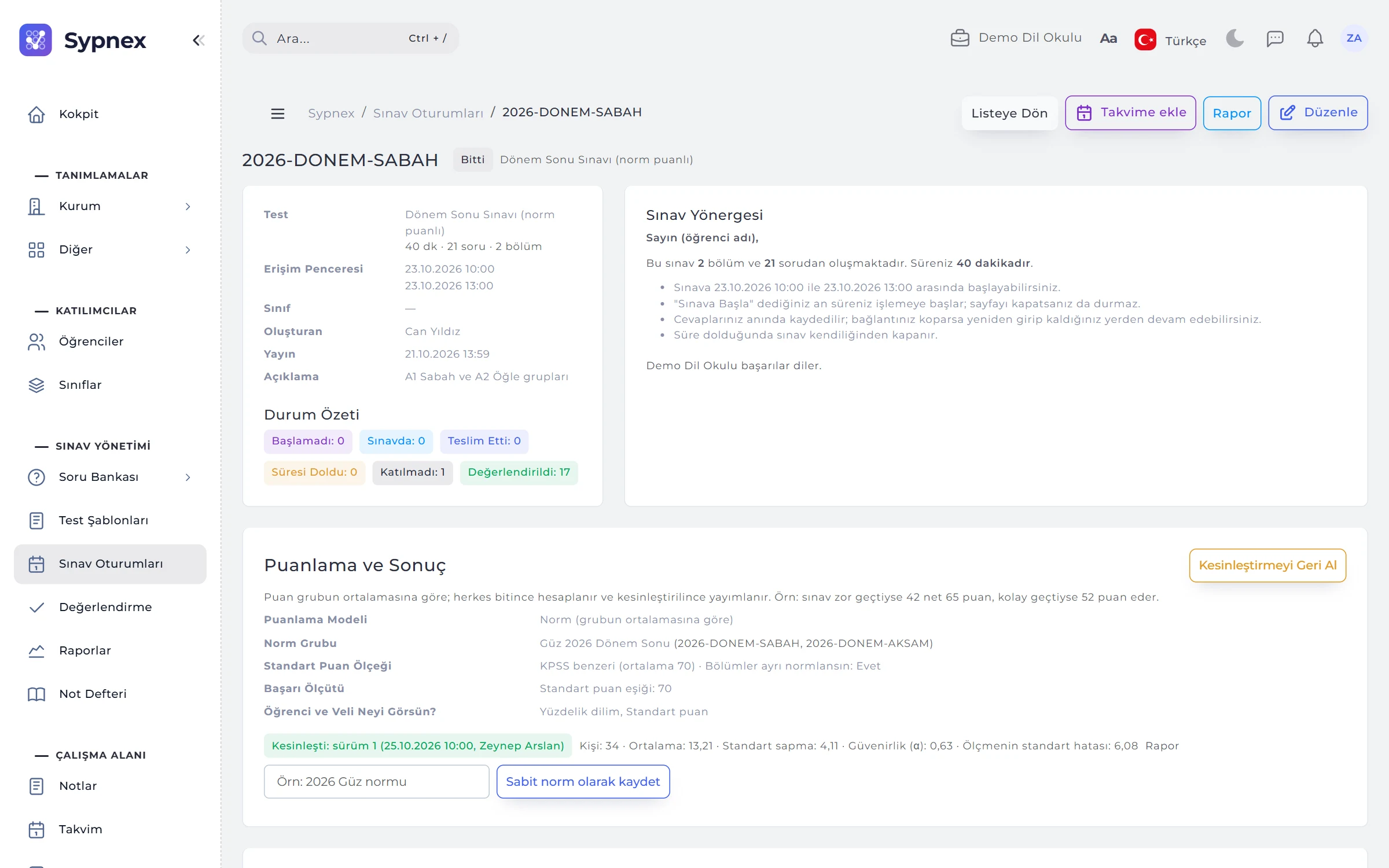
On the Scoring and Results card, a criterion model (each student by their own rule) or a norm model (relative to the group mean) is chosen. In a norm-referenced session scores are calculated once everyone has finished, the report is checked, and all results are announced together with Finalise and Publish.
- Norm group: branches taking the same test on different days are compared together.
- Scale: T-score (mean 50, SD 10), KPSS-style (mean 70, SD 10) or custom; sections can be normed separately.
- Pass criterion: the test’s criterion, a standard score threshold, the top N students or the top X%.
- Versions and fixed norms: every calculation is saved as a version and can be rolled back; a finalised calculation becomes a fixed norm for later terms.
06PAPER EXAMS AND OPTICAL FORMS
Print the booklets, scan the sheets, and the results land in the session.
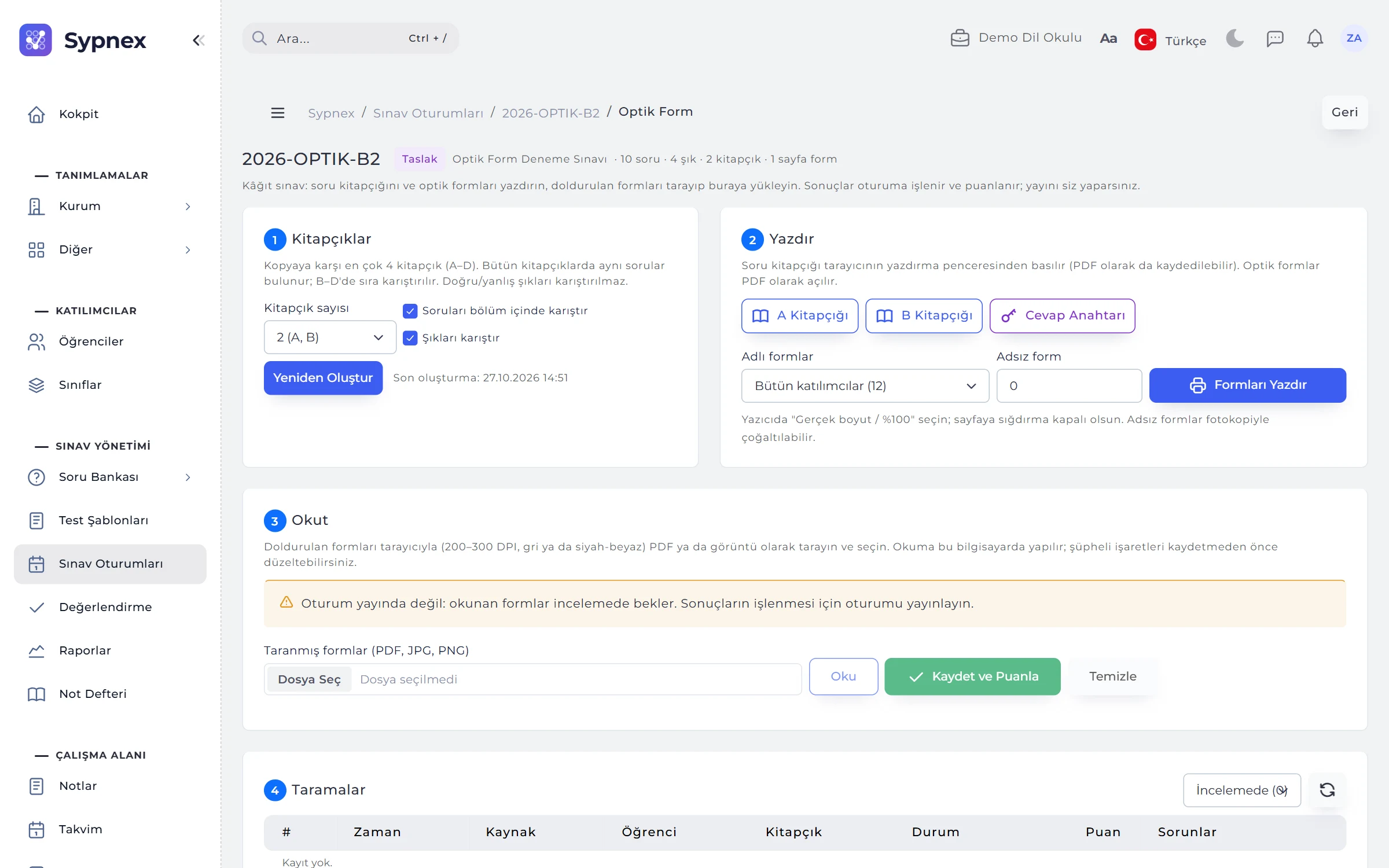
In a session whose format is “Paper (optical form)”, the Optical Form screen opens. Reading is done on your computer; each page shows the student, booklet type, answer count and doubtful marks, which are corrected before saving.
- Booklets: 1–4 booklets (A–D); questions and / or options are shuffled in B–D.
- Printing: question booklets, answer keys, sheets pre-printed with name and number, or blank sheets.
- Reading: scanned PDF, JPG or PNG at 200–300 DPI; the school’s optical reader file, or the camera in the mobile app.
- Scoring rules: two marks on a single-answer question count as wrong; the test’s penalty and partial credit apply.
RULES
Session rules
Some fields lock after publishing, so that the exam runs under the same conditions for everyone.
Published sessions
Only the description, instructions and allowed IP list can change; for anything else the session is cancelled and a new one opened.
Window and start
The access window cannot be shorter than the test duration, and the start cannot be in the past.
Cancelling
Attempts in progress are closed and answers kept; a finished session or one with published results cannot be cancelled.
Norm sessions
Results are announced together with Finalise and Publish, not one by one; nothing is calculated while attempts await grading.
Paper exams
Choice questions only (up to 5 options); adaptive tests cannot run on paper, and retakes and online security are switched off.
Run your next exam with Sypnex.
Leave a demo request and try Sypnex with your own questions, classes and scoring rules.